

Batch lets you create multiple graphics at once. Pick a template and choose your games, whether it's one team's full season or every sport on your schedule this week, and Box Out builds a graphic for each one.
It works best with Events. With your calendar connected, the opponent, date, time, and location fill in for every game. No synced calendar? A simple spreadsheet works too. Batch is in beta and free for everyone through the 2026-27 season.
Watch the quick walkthrough below, then read on for a closer look.
What you can do with Batch
Start a batch
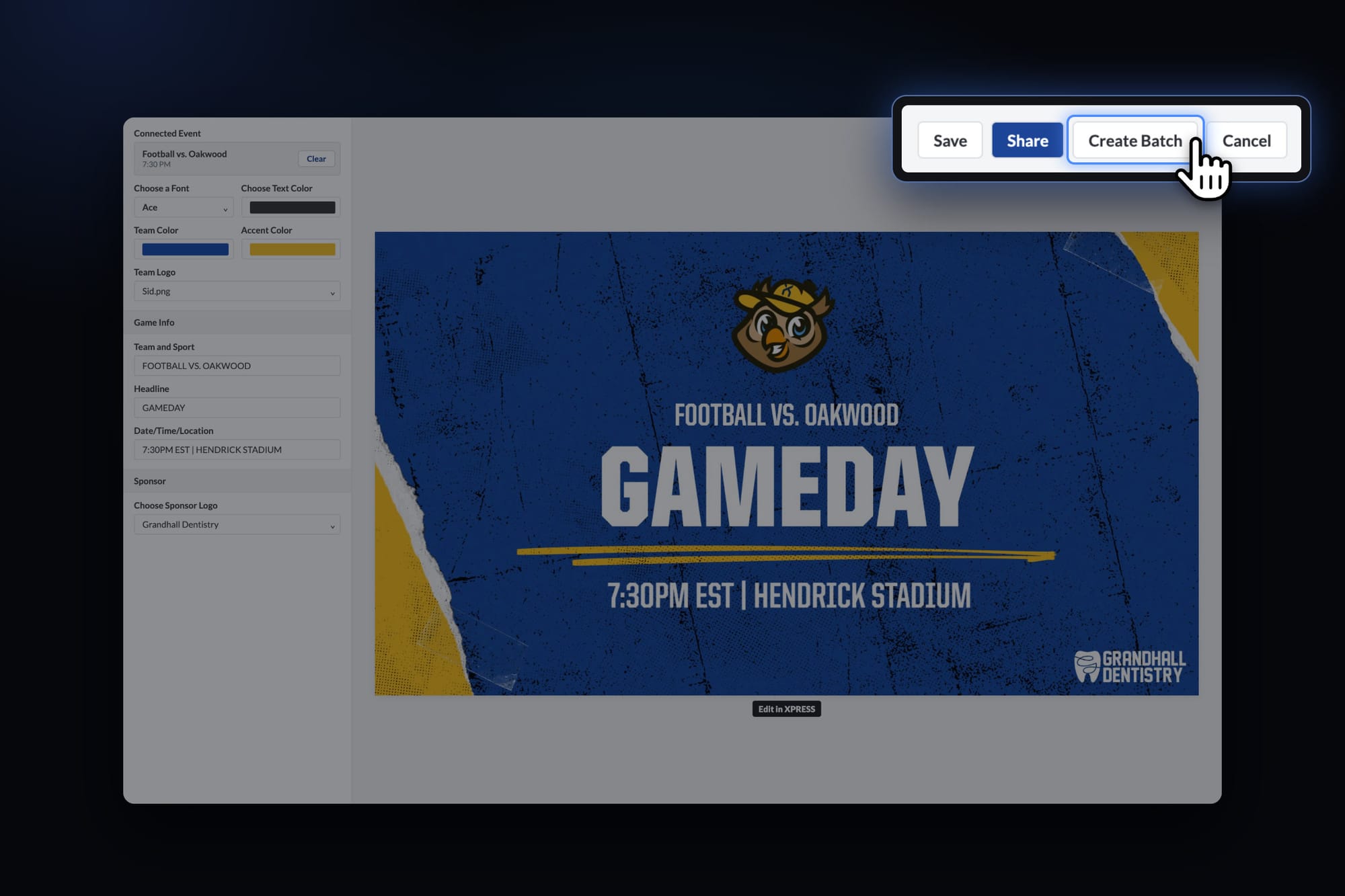
Open any gameday template and click Create Batch, next to Share. Your graphic becomes the first one in the batch.
Choose what changes
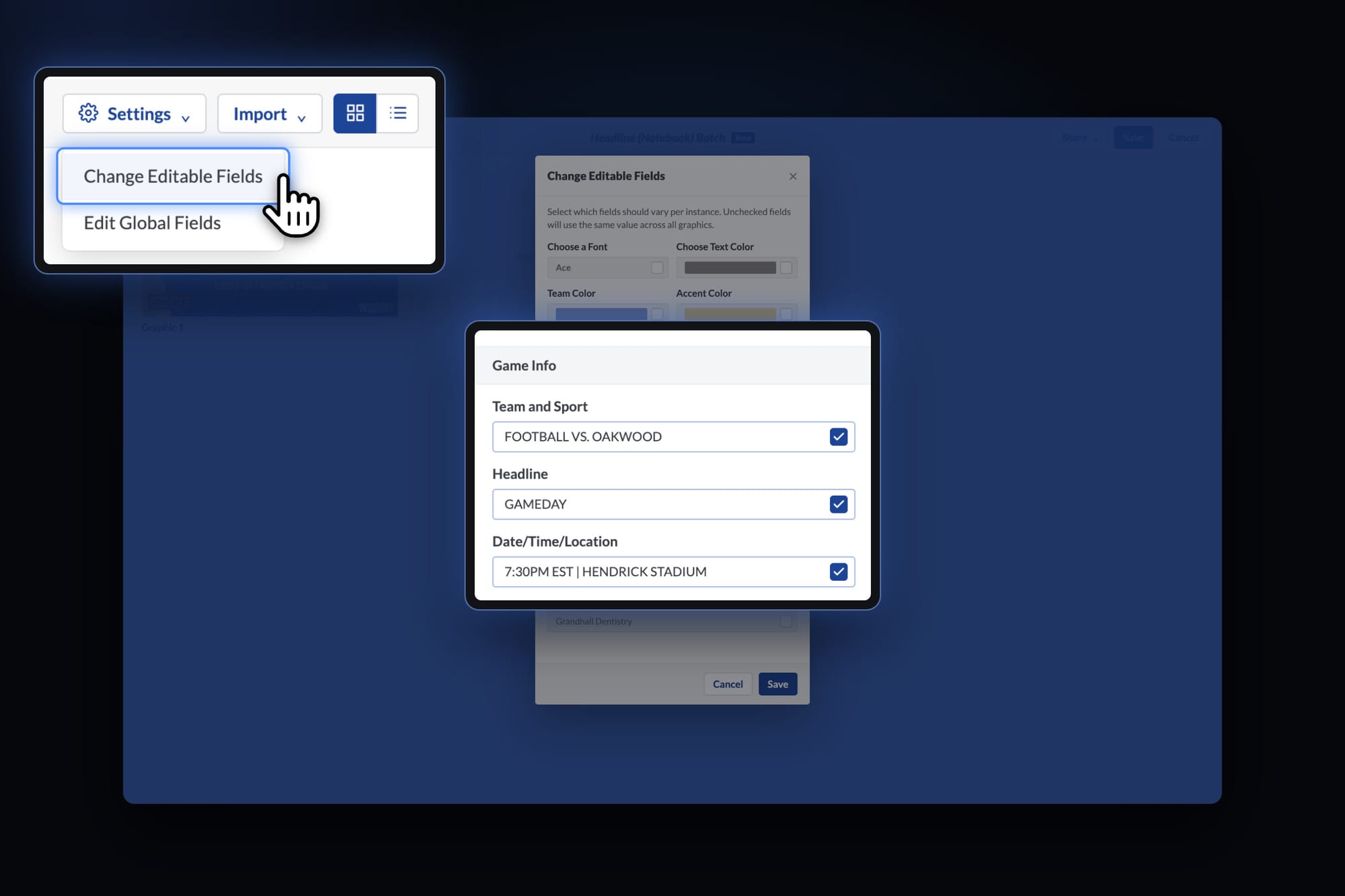
Open Settings and choose Change Editable Fields to check what changes from one graphic to the next, like the opponent, date, time, location, or photo. Everything else stays the same: your template, colors, and sponsor.
Create from your events
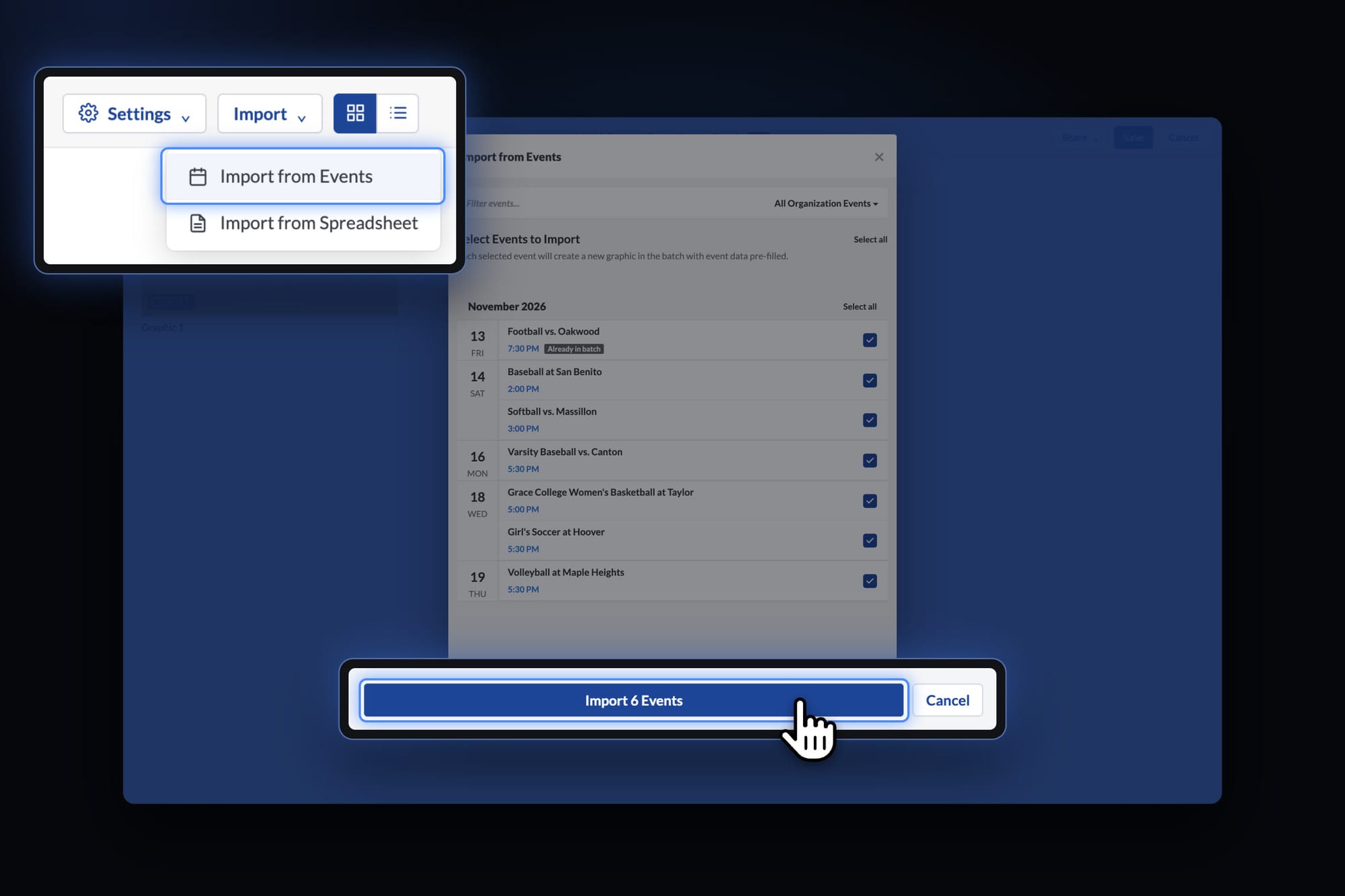
Choose Import from Events and pick your games: one team’s season, one busy week, or every sport on your schedule. Each event becomes its own graphic, with the opponent, date, time, and location filled in.
Or create from a spreadsheet
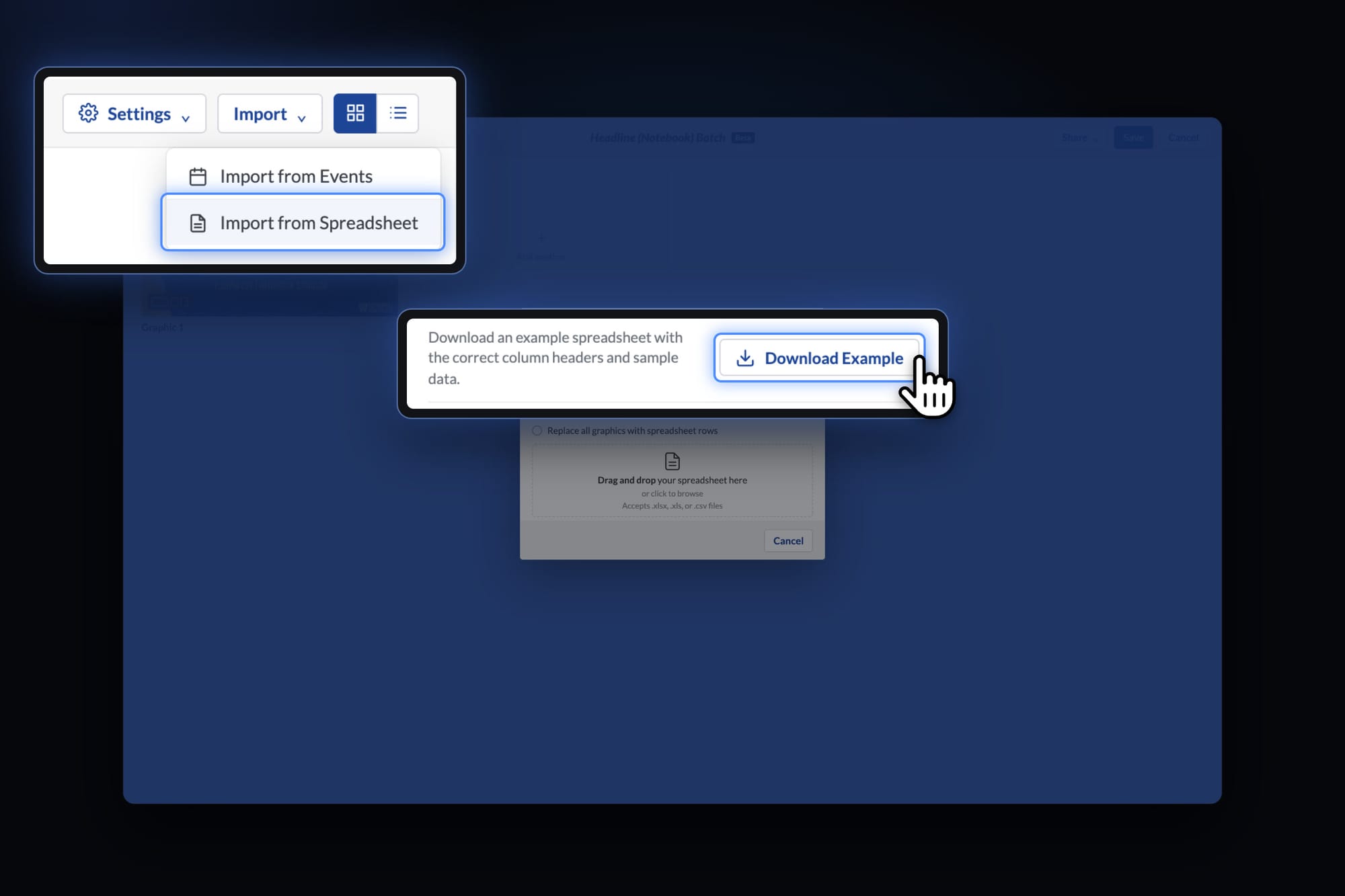
No calendar connected? Choose Import from Spreadsheet and click Download Example to get a spreadsheet made for that template. Fill in one row per graphic, drop the file back in, and every row becomes a graphic. Excel and CSV both work.
Give each graphic its own photo
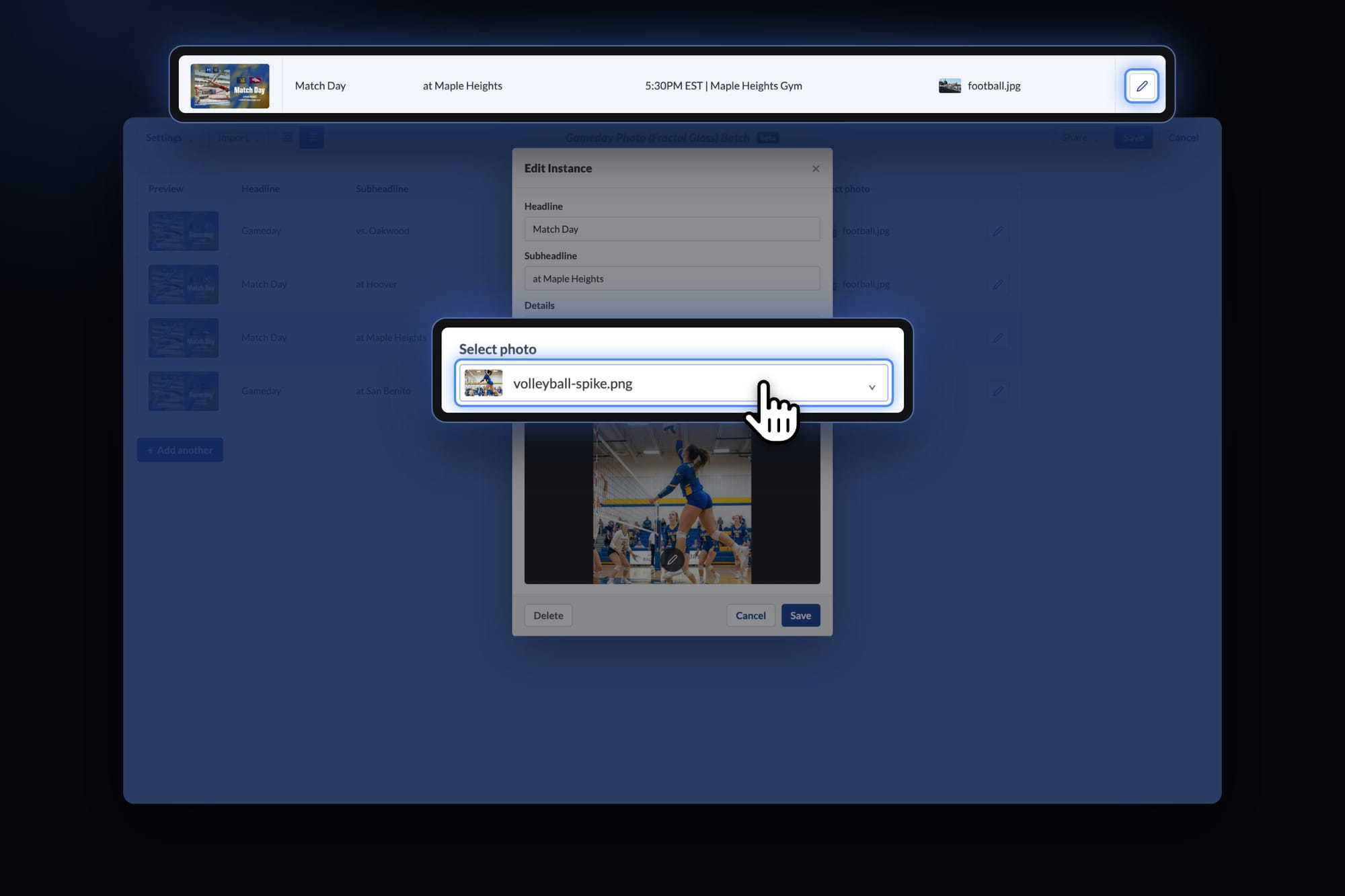
Batch uses the same photo on every graphic at first. To swap it, make sure Photo is checked in Change Editable Fields. Then click any graphic in the batch (or the pen icon next to it in the list view) and pick a new photo under Select photo. Now volleyball gets a volleyball photo and football gets a football photo.
Captions and scheduling, done for you
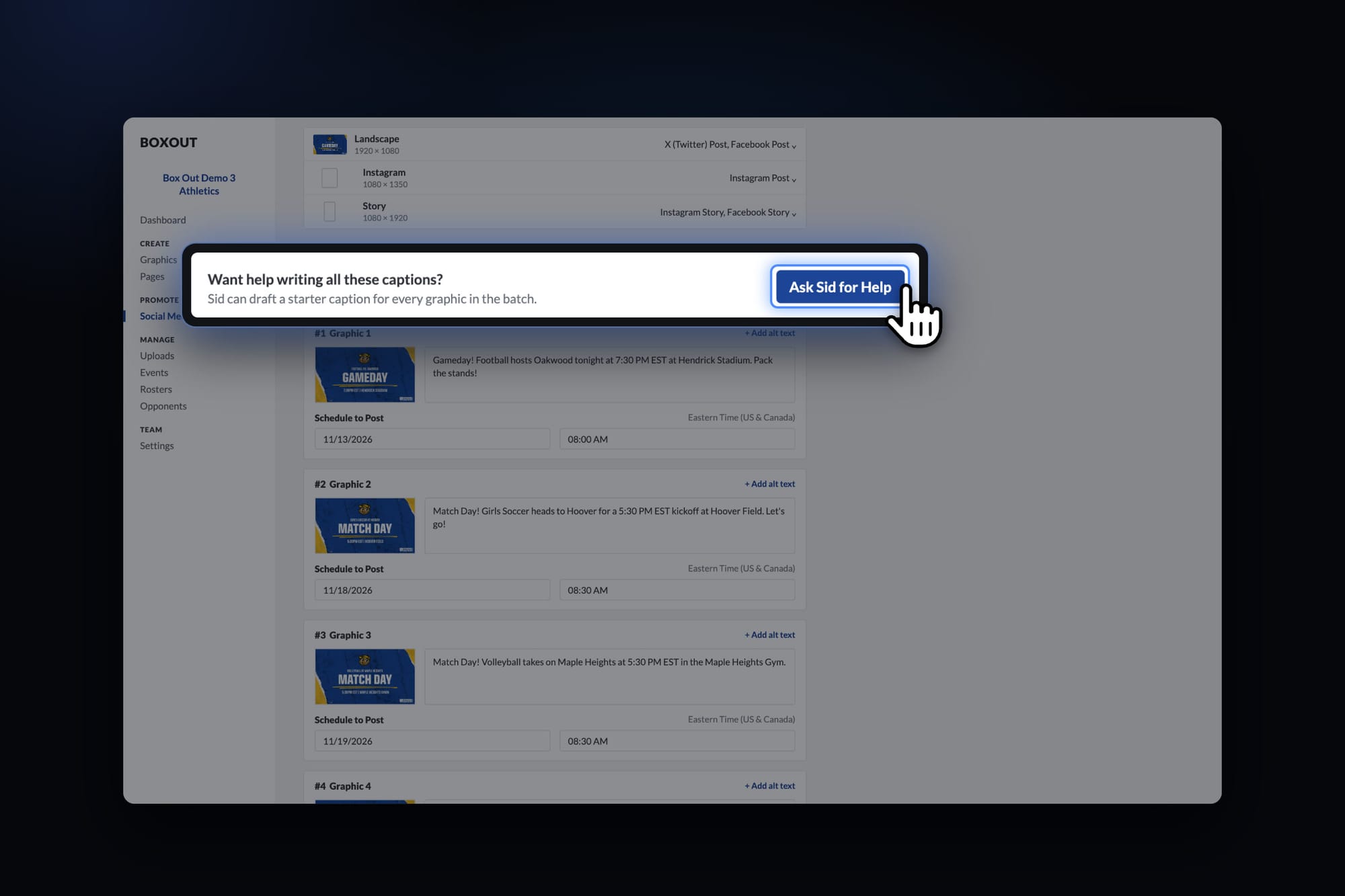
Write a caption for the first graphic, or click Ask Sid for Help and Sid, our mascot, drafts AI-assisted captions for you. Batch writes matching captions for the rest, each with the right opponent, time, and place. Review, tweak, and schedule.
Where Batch shines
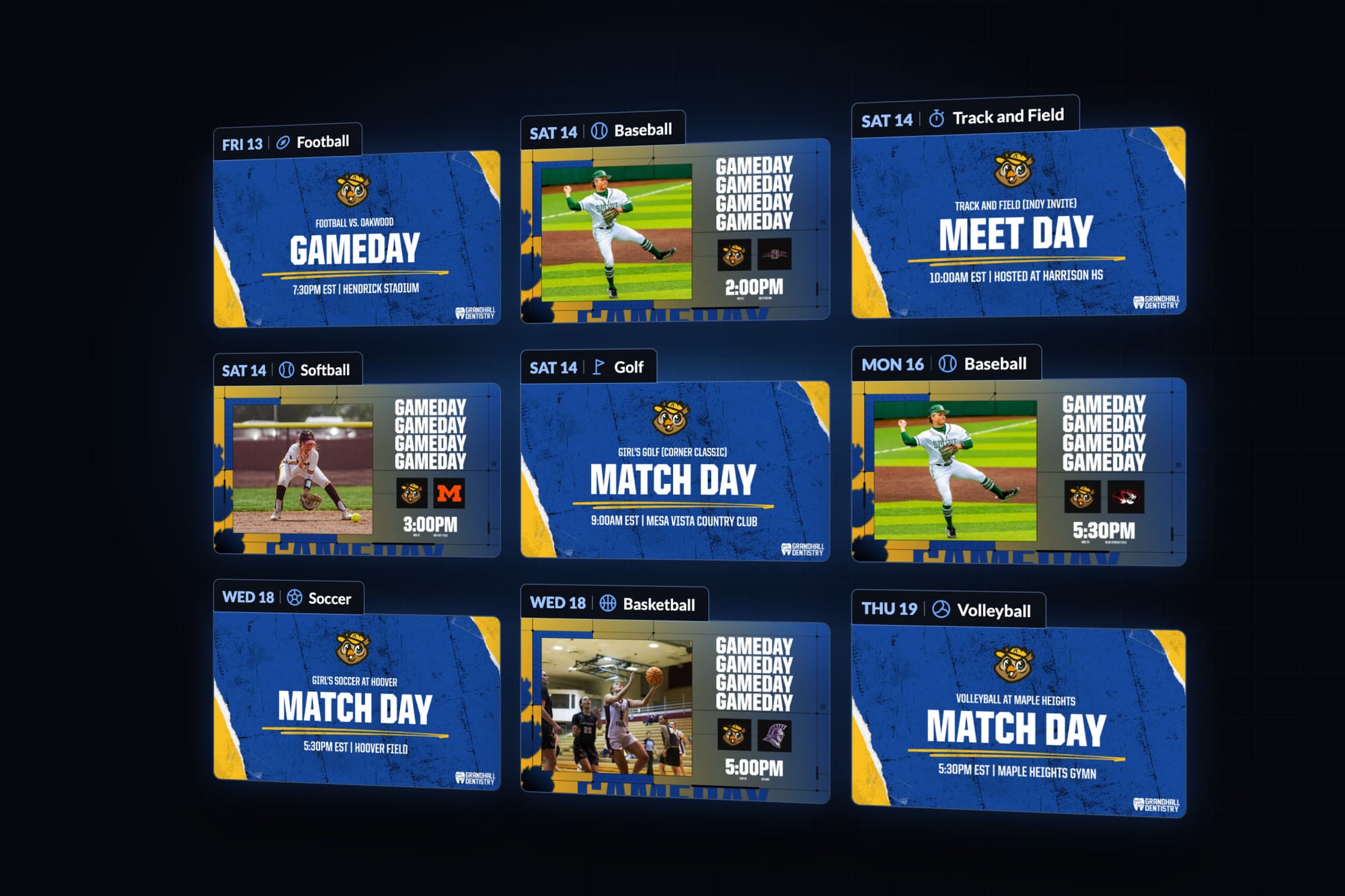
Every gameday, all season. Add a team’s schedule once, and every game, home and away, gets its own graphic, captioned and scheduled.
A busy week across every sport. Pull every event for the week, or the whole month, into one batch, and each team gets its graphic on its own game day.
Recommended templates to start with
These gameday templates work great with Batch. Click a name to open it in your Box Out account.
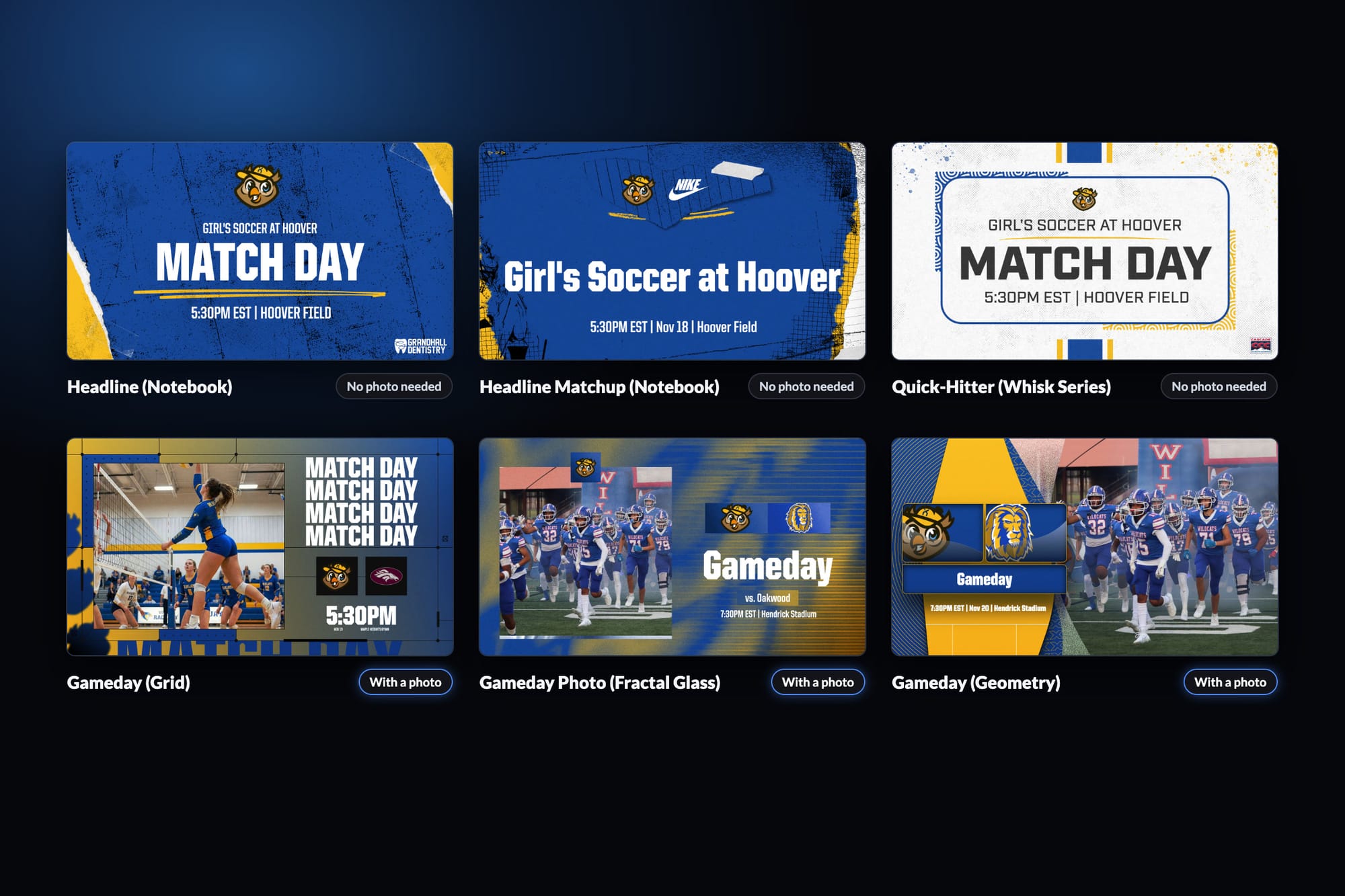
No photo needed
With a photo
Tip: save your opponents in the Opponents tab. When an event says “vs.” or “at” a saved opponent, their logo fills in on its own.
Get the most out of Batch: connect your events
Batch does its best work with Events. The more of your calendar Box Out knows, the more you can batch, from one team’s season to every sport on your schedule.
To connect it, go to the Events tab, click Import Events, and paste the subscribe or iCal link from your schedule. Box Out works with the scheduling tools and website providers you already use, and our help center has step-by-step guides for each one.
Spot something off? Let us know
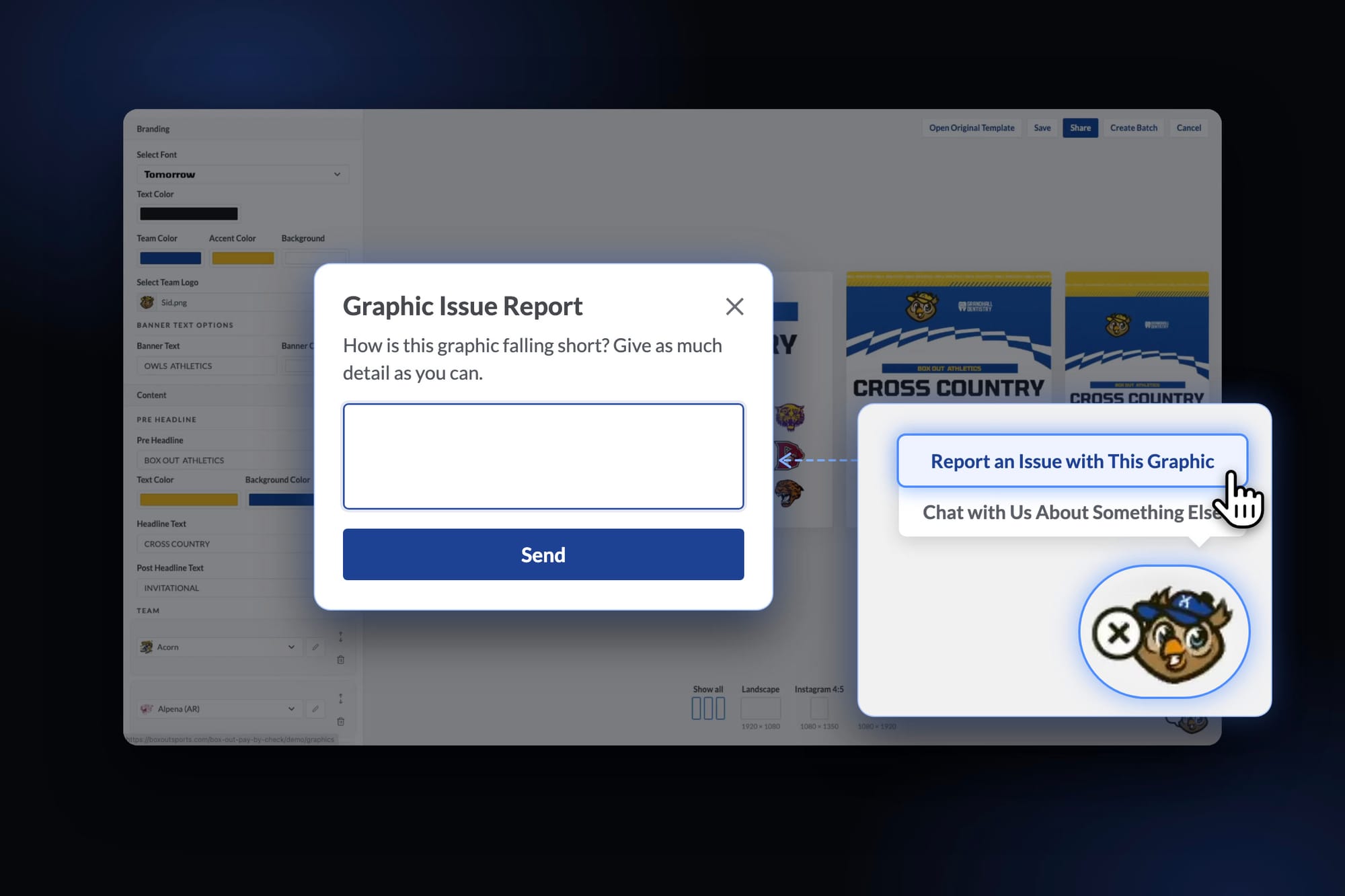
Batch is brand new, and we’re still bringing every template up to speed. If a graphic looks wrong, like a missing date or the wrong field filled in, click Sid in the bottom right corner and choose Report an Issue with This Graphic. Tell us what’s missing. It goes straight to our developers so we can fix it fast.
We can't wait to see how much time it saves you. If you have questions, we're happy to help.


